
In the AFAS integration, it has long been possible to match receipt lines with their corresponding purchase invoices in Blue10. If the receipt lines match the purchase order, they are matched directly in AFAS from within Blue10.
Since June 2026, the purchase order tab and purchase order window have also been available, providing an overview of linked purchase orders along with their receipt and line item numbers.
It is also possible to select these lines (separately) when validating the invoice, so that you can specify in advance exactly what needs to be reconciled in AFAS. This allows you to work efficiently with partial deliveries, maintain a clear overview and avoid unnecessary error messages.
Please note: the purchase order window is only available from GetConnector version 7 onwards. Are you still using an older version to link AFAS with Blue10? Read more here.
In this blog, you can read more about using the purchase order window in Blue10.
Old method for linking a purchase order
If you are still using GetConnector version 6 or older, you are still using the old method of linking a purchase order to an invoice. In the validation screen, you can enter the required number in the Purchase Order Number field, and only the posted receipt lines will be displayed for the invoice. The parent purchase order line is not visible in Blue10.
New method for linking a purchase order
Clicking the Search button on the validation screen opens the purchase order window. This displays all outstanding purchase orders from the relevant supplier and the status of each purchase order as recorded in AFAS. This includes details such as order unit, posted receipt, quantity ordered, quantity received and amount invoiced.
Select the required purchase order lines to populate the underlying receipt lines on the coding lines.
Below are various ways to use the purchase order window:
1. Selecting the entire purchase order
This works in the same way as the current matching method. All posted receipt lines for the purchase order are populated at line level. If there are no uninvoiced posted receipts, no coding lines will be created.
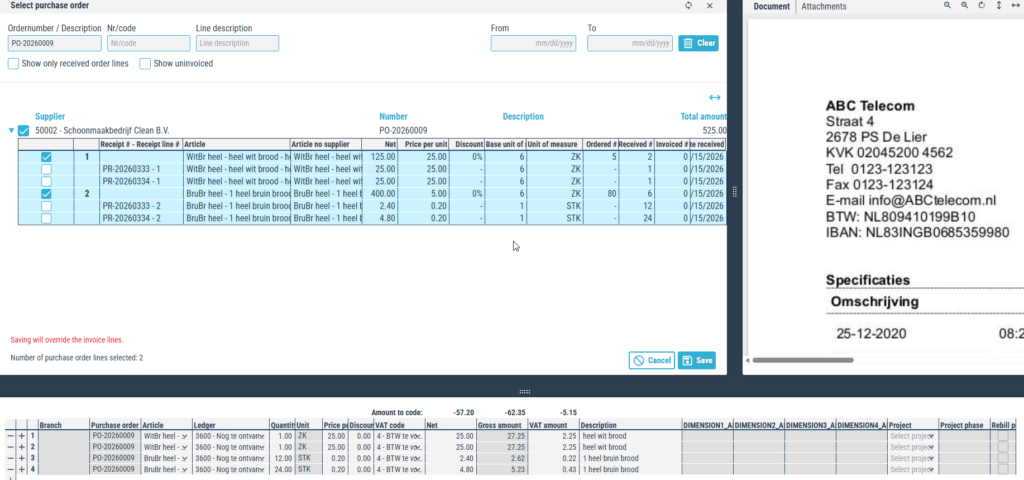
2a. Matching part of the purchase order (Order lines)
If the invoice relates to part of the purchase order, select only the corresponding purchase order line. Open the purchase order using the arrow on the left and select the required order lines. All underlying posted receipts will be populated at line level at the bottom of the screen.
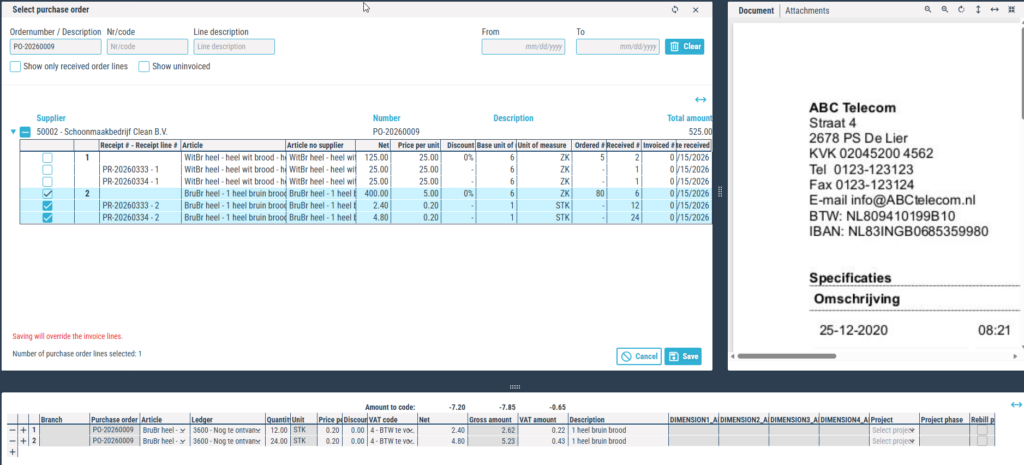
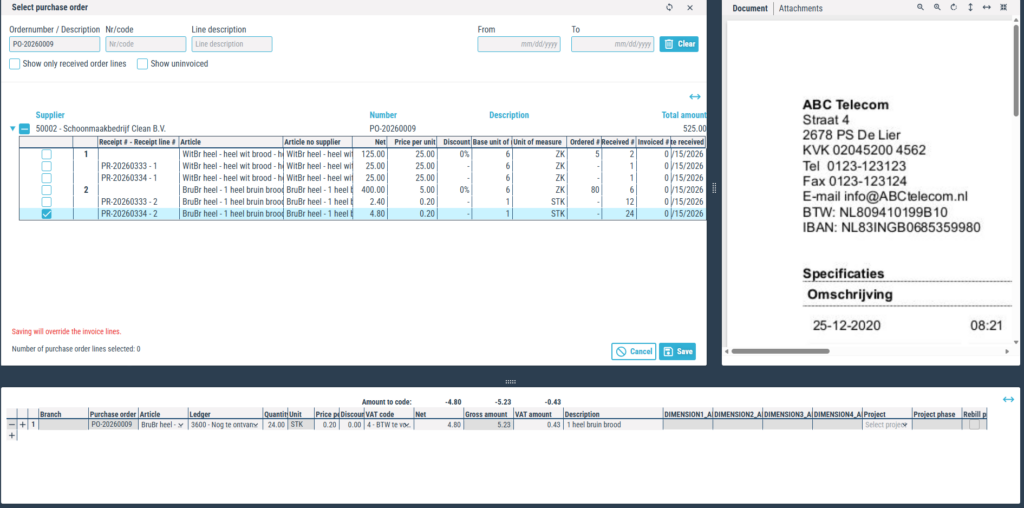
2b. Matching part of the purchase order (Receipt lines)
Does the invoice relate to part of a purchase order line? If so, select only the relevant posted receipt line.
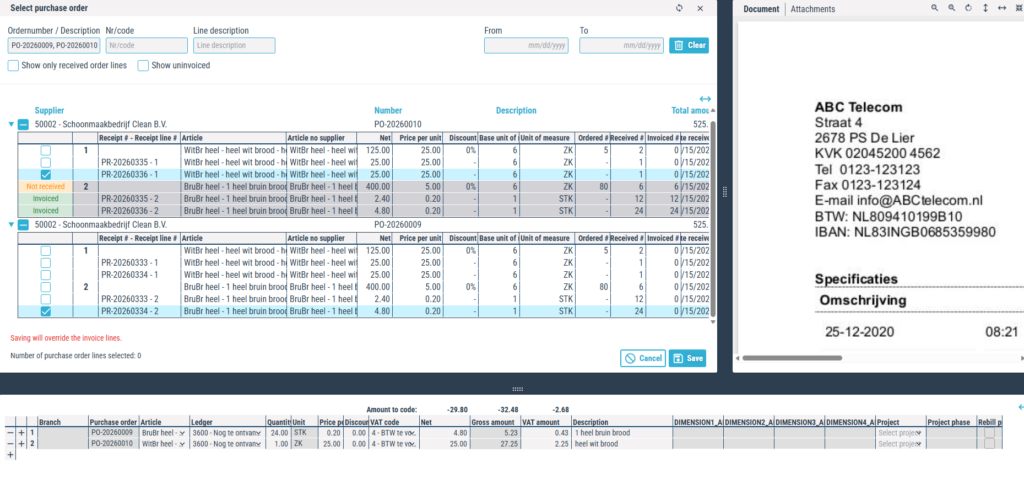
2c. Selecting a combination of purchase order receipt lines from different orders
If the invoice consists of a combination of different orders, you can also select these via the purchase order window. Select all applicable lines and save everything.
3. Checking and approving posted receipts
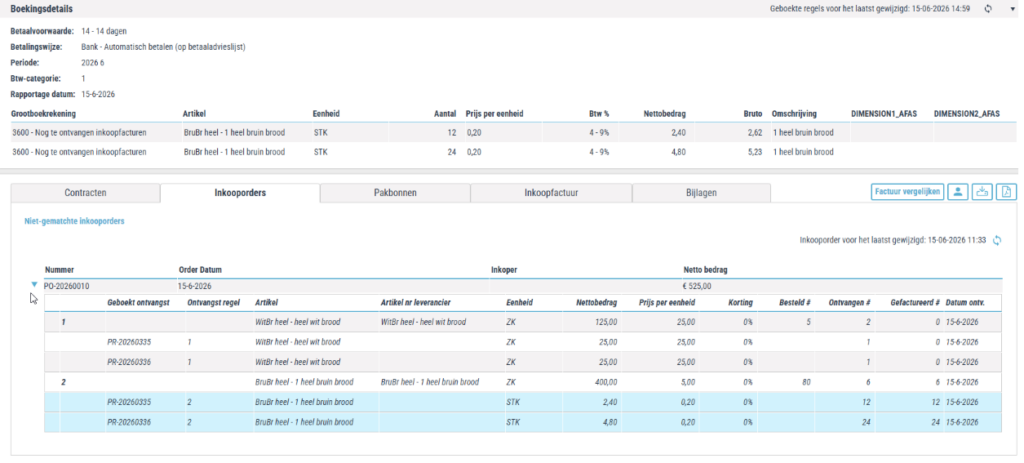
Once a purchase invoice has been processed via the new purchase order window, a reviewer can use the ‘Purchase Orders’ tab to see which receipt numbers have been matched. At line item level, the quantities, receipt units and item details are visible.
Getting started with the purchase order window
To use the latest features in Blue10, such as the purchase order window, you need to import the most recent GetConnectors. These GetConnectors establish the integration between AFAS and ensure that the correct data, such as master data and suppliers, is transferred to Blue10. The purchase order window is available from GetConnector 7 onwards. Find out how to import the latest version of the GetConnector here
Once this has been installed, you can enable the Use matching window setting in Blue10 via Management > Companies.
